
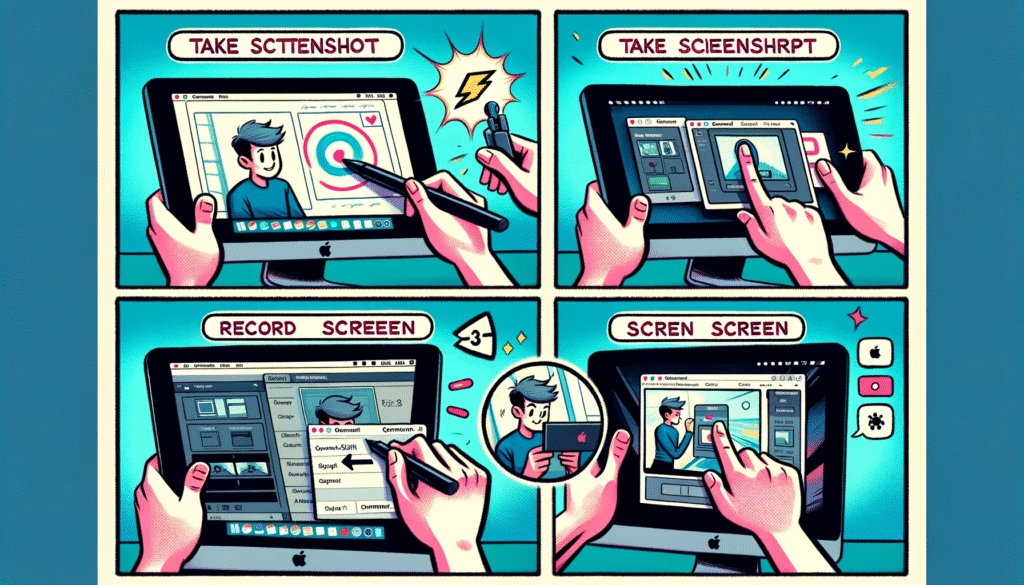
Mac Screenshot and Screen Recording Guide
Taking a Screenshot on a Mac
Capture your entire screen by pressing ‘Command’, ‘Shift’, and ‘3’. You’ll see the screen flash, indicating the screenshot has been taken and saved to your desktop.
Capturing Part of Your Screen
Press ‘Command’, ‘Shift’, and ‘5’ to open the screen-capture window. Use the crosshair cursor to click, drag, and select an area of your screen. Adjust your selection using ‘Shift’, ‘Option’, or the ‘Space bar’. After releasing your mouse or trackpad, the selected screenshot is saved to the desktop.
Screen Recording on a Mac
Activate screen recording by pressing ‘Command’, ‘Shift’, and ‘5’. Choose either ‘Record the entire screen’ or ‘Record a portion of the screen’ from the options. Start recording by clicking ‘Record’, and stop it using the ‘Stop recording’ button in the menu. The recording is saved to the desktop.

